Why is my Christmas card only showing half my photo?
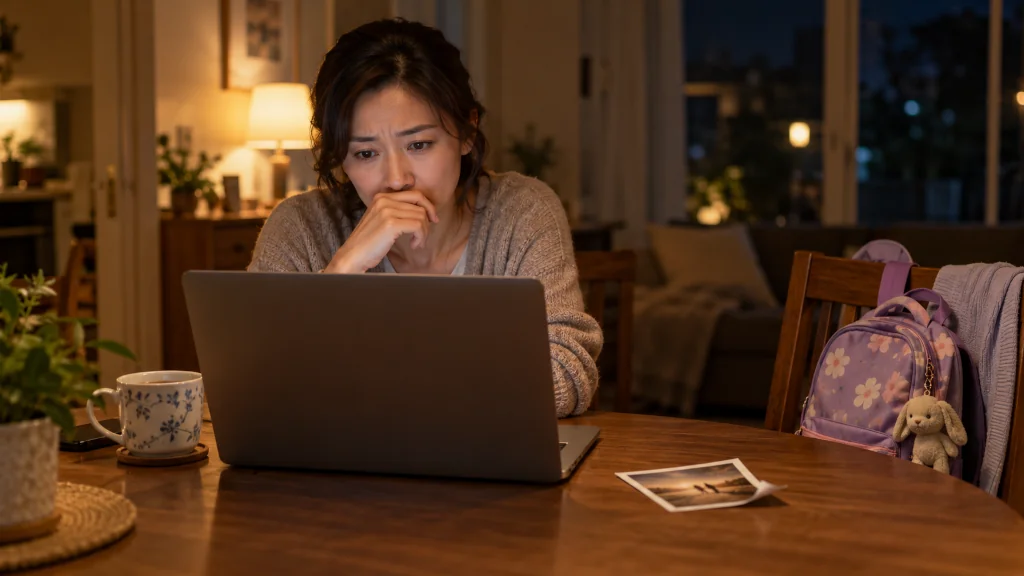
The kids are finally asleep, and the card design is open on the laptop at the dining table.
It is the picture from the lake in August: all five of you on the dock, squinting into the sun.
Except on the card, your sixteen-year-old is gone.
All that is left of him is an elbow at the left edge.
The rest of the photo is usually still there. It is hidden, and it is hidden in one of a few specific places.
Many card senders run into this. One parent put it this way: “How do you use a whole picture on a Christmas card? It’s only using half of our picture”
This article explores the first part of the larger question: finding out where the missing part went, so the fix you try is the right one.
Key Takeaways
- When a card shows only part of a photo, the full photo is usually still intact. Something is hiding the rest.
- There are four common places the missing part goes: the photo was already cropped, the card’s photo opening is a different shape, lettering or decoration covers it, or the edges were trimmed in printing.
- Each cause has a different fix, so it helps to identify the cause first.
- If dragging the photo brings one person back and pushes another out, the opening cannot hold everyone at that size.
- Layout tools cannot bring back parts of a picture that were never in the file.
The photo is not missing. It is hidden.
When the card cuts someone off, it is natural to assume something went wrong with the upload.
In most cases, nothing did.
The card’s design has a window where the photo sits.
The photo is placed behind that window.
Whatever falls outside the window is still part of the file. It just is not showing.
Think of standing in a hallway and looking into a room through a doorway.
The whole room is there.
You only see the part the doorframe allows.
Four places the missing half can go
1. The photo was already cropped
Sometimes the picture that was uploaded is not the full original.
A copy saved from a text message, a social media post, or an earlier edit may already have lost its edges.
If that is the case, no setting on the card can show what is not in the file.
2. The photo opening is a different shape
This is the most common cause.
A card described as 7×5 does not necessarily have a 7×5 window for the photo.
The window might be square, tall, narrow, or shared with a greeting.
When the photo and the window are different shapes, the card has to choose: show the whole photo with space around it, or fill the window and hide the edges.
Many designs fill the window by default.
3. Lettering or decoration covers part of it
A name banner, a greeting, a wreath, or a border can sit on top of the photo.
The person is technically in the picture. They are just behind the words.
4. The edges were trimmed in printing
Printed cards are cut from larger sheets, and the cut is not perfectly exact.
A face placed right at the edge can look fine on screen and come back trimmed.
This one usually shows up after the cards arrive rather than in the preview.
How to tell which one it is
A few simple comparisons can narrow it down.
- Open the original photo on its own. If the missing person is also missing there, the photo was already cropped. Look for an earlier, uncropped copy.
- Compare the original with the card preview. If the original is complete but the preview is not, the opening shape is the likely cause.
- Drag the photo inside the window. If one person comes back and another disappears, the window cannot hold everyone at this size. Moving the photo will not solve it. A different window, layout, or treatment will.
- Look for anything sitting on top of the photo. If the person is there but behind lettering or a decoration, the design is covering them.
- Compare the received cards with the approved preview. If the preview was right and the printed edges are not, the loss happened in printing.
- If everyone is there but hard to make out, the problem is size or sharpness, not cropping.
Practical Takeaways
- Before changing anything, find out which of the four causes you are dealing with.
- Keep the original photo file, not a copy from a message or a post.
- Treat “dragging moves the problem” as a sign to change the window, not to keep dragging.
- Decide as a family who has to be in the card. That answer guides every later choice.
- Save a screenshot of the preview you approve, in case the printed cards differ.
Conclusion
This article does not fix every card that cuts off part of a photo.
It answers the first question: where did the missing part go.
Once you know whether the photo, the window, the design, or the printing is responsible, the rest of this series looks at the fixes for each.
The photo is rarely broken.
It is usually just behind the frame.
Nobody Left at the Edge
If the person who keeps disappearing is the one standing at the edge of your photo, a Hawkes’ Impossible Portraits holiday card works the other way around. You upload a photo of each person, and the scene is composed around your whole family instead of fitting one group picture into a fixed window. Every portrait gets an automatic identity check, and you can run it again and choose among the versions that pass. The cards are premium folded 7×5 cards on heavyweight 130 lb silk-coated stock with premium envelopes, in Christmas, Hanukkah and Kwanzaa scenes. See the before-to-after examples.
FAQ
Is my photo damaged if the card only shows part of it?
Usually not. The full photo is normally still in the file. The card’s photo window, a design element, or printing is hiding part of it.
Why does someone disappear when I move the photo?
The photo window is a different shape from the photo, so at that size it cannot show everyone at once. Moving the photo changes who is hidden rather than fixing it.
Can I get back part of the photo that was cut off before I uploaded it?
No. Layout tools can only show what is in the file. Look for an earlier, uncropped copy of the original.
How do I know if printing caused the cropping?
If the preview you approved showed everyone and the printed cards do not, the loss happened at the printing stage.
This Article Is Part Of A Larger Series
Question: How do you use a whole picture on a Christmas card? It’s only using half of our picture
Current article: Article 1 of 13 – Foundation article
This article explores one evidence-supported aspect of the larger question.
Readers interested in the full answer should explore the complete series.