Blurry Christmas card photo even though it fits?
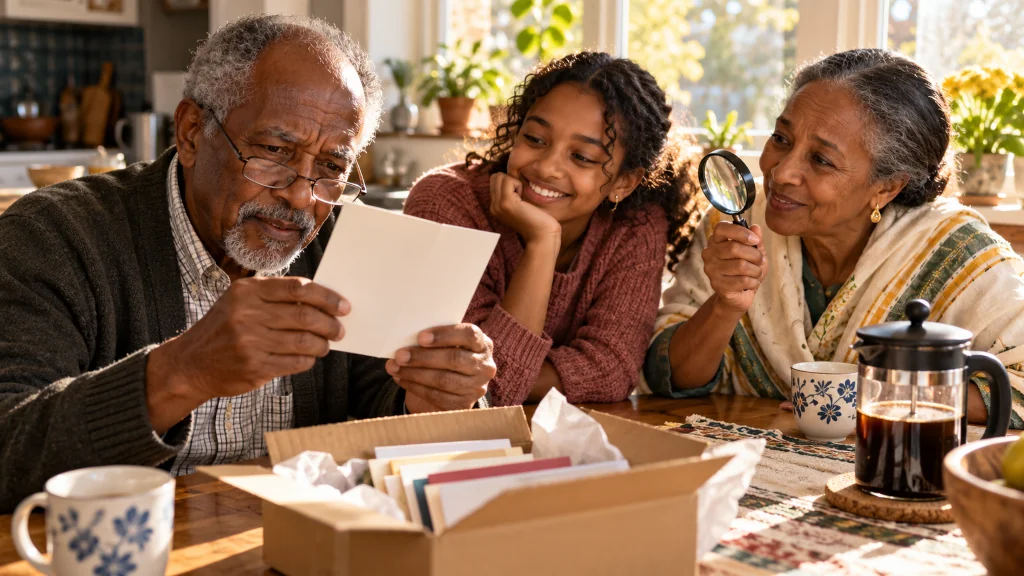
The box of cards arrives on a Thursday, and you open it at the kitchen table.
It took three tries to get the photo right: the two of you and your granddaughter on the back porch, everyone in the frame, nobody cut off.
You lift the first card out.
Everyone is there.
And everyone is just slightly soft, like a picture seen through a steamed-up window.
There was no warning when you ordered.
Fitting the whole picture and printing it sharply are two separate jobs. A photo can pass the first and still fail the second.
It is a frustrating end to a question many card senders ask: “How do you use a whole picture on a Christmas card? It’s only using half of our picture”
This article explores one part of the larger question: why a photo that fits can still print soft, and what to check after the layout is fixed.
Key Takeaways
- Getting the whole photo onto the card does not guarantee a sharp print.
- Zooming in on part of a photo uses fewer of its pixels, which can make the print softer.
- Copies of photos sent by message or saved from social media often lose detail.
- A resolution warning in an editor usually checks pixel count, not focus or blur.
- Changing a resolution setting does not add detail that is not already in the photo.
Two different jobs
Earlier articles in this series looked at getting everyone into the frame.
That is about where the photo sits.
Sharpness is about what the photo is made of.
A digital photo is a grid of tiny dots called pixels.
The more pixels covering each inch of the printed card, the finer the detail can be.
When a photo with plenty of pixels prints at card size, the dots are too small to notice.
When a photo with fewer pixels is stretched across the same space, each dot covers more paper, and edges start to look soft.
As an illustration only: a printer working at 300 pixels per inch would want a picture about 2,100 by 1,500 pixels to fill a 7 by 5 inch area. That is arithmetic, not a rule every printer follows, and a smaller photo inside a border needs fewer pixels.
Where sharpness goes
Zooming in
Every time a photo is enlarged inside the card window, fewer of its pixels are doing the work.
A small crop of a large photo can end up with fewer pixels than you would expect.
This is common when someone zooms in to fix a crop problem.
Copies
A photo texted from one phone to another, or saved from a social media post, is often a smaller, compressed copy.
It can look fine on a phone screen and print noticeably softer.
Focus
A photo that was slightly out of focus, or taken while someone was moving, stays that way no matter how many pixels it has.
Think of turning up a small speaker as far as it will go.
It gets louder.
It does not get clearer.
Enlarging a photo works the same way. It gets bigger, not sharper.
What a warning does and does not check
Many card editors show a warning when a photo may not have enough pixels for its size.
That is helpful, but it is a narrow check.
It usually does not look at whether the photo is in focus, whether someone moved, or whether faces are clear.
A photo can pass the warning and still print soft.
Changing a photo’s resolution number in a settings menu does not help either. It relabels the same pixels. It does not add new detail.
Practical Takeaways
- Start from the original photo file, not a copy from a message or a post.
- After fitting the photo, look at it zoomed to roughly the size it will print, and check faces closely.
- Avoid heavy zooming to fix a crop. If you must zoom far in, consider a different photo.
- Treat “no warning” as one check, not a guarantee.
- If a favorite photo is soft, decide whether a slightly different, sharper picture would serve the card better.
Conclusion
This article does not cover every reason a card can disappoint.
It answers one part of the question: why a photo that finally fits can still print soft.
The rest of the series looks at layout choices, a final proof check, and what to do if delivered cards do not match.
Getting everyone in is the first job.
It fits. That does not mean it is sharp.
FAQ
Why is my Christmas card photo blurry when it looked fine on screen?
Screens can make a photo look sharper than it will print. If the photo was zoomed in, compressed, or slightly out of focus, the print can come out soft.
Does zooming in on a photo make it blurrier when printed?
It can. Zooming in uses fewer of the photo’s pixels to fill the same space, so each one covers more of the printed card.
Will a photo from a text message print well?
Often not as well as the original. Messages and social media frequently compress photos into smaller copies.
If the editor gives no warning, is my photo fine?
Not always. Warnings usually check pixel count, not focus or blur. Look at faces closely before ordering.
This Article Is Part Of A Larger Series
Question: How do you use a whole picture on a Christmas card? It’s only using half of our picture
Current article: Article 8 of 13 – Mid-series
This article explores one evidence-supported aspect of the larger question.
Readers interested in the full answer should explore the complete series.