Will my toddler’s photo look blurry or dark on a printed Christmas card?
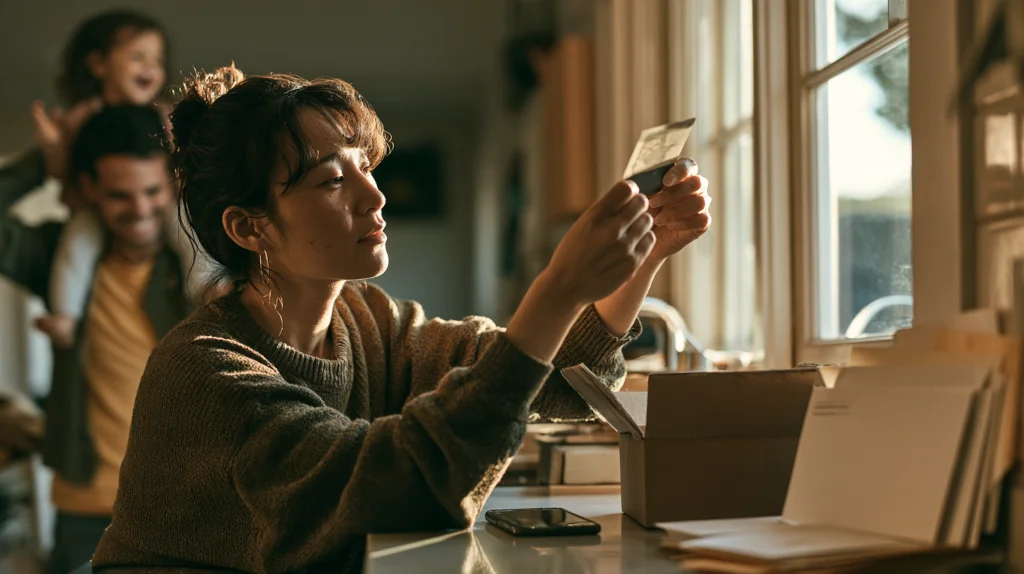
Last year, the cards arrived on a Tuesday.
You opened the box at the kitchen counter, excited.
On your phone, the picture had been perfect: your daughter in her father’s arms, both of them laughing by the tree.
On paper, her face was a dim, soft smudge.
You sent them anyway.
This year, you would like to get it right.
Many parents ask some version of this: “Do your toddlers give you a hard time taking photos ? Especially this holiday season of Xmas cards . Our 2 year old won’t let us”
One direct answer: a photo that looks great on a phone can still print dark, soft or badly cropped, so check sharpness, light, crop and the proof before you order, separately from how much you love the picture.
This article explores one part of that larger question: how to make sure the toddler photo you worked so hard to get still looks good on paper.
Key Takeaways
- A phone screen makes most pictures look brighter and sharper than they will print.
- Faces in shadow usually print darker than they look on screen.
- Zoom in on the eyes; small screens hide softness.
- Card shapes and safe margins can crop heads and edges, so leave room around everyone.
- Study the proof closely, and know what to do if the cards still arrive wrong.
A screen shines; paper reflects
The gap between a phone and a printed card starts with light.
A phone screen makes its own light.
It glows from behind the picture, often at high brightness.
Paper does not glow.
It only gives back the light that falls on it in the room.
A photo on a screen is a little like a stained-glass window with the sun behind it.
On paper, the sun is gone.
That is why shadows that looked soft on your phone can print as dark patches.
And it is why a face that was a little underlit can turn into a smudge.
Many parents who post about disappointing holiday cards describe exactly this: a picture that looked clear in the preview, and a card that came out dark, grainy or washed out.
Sometimes the printing is at fault.
Sometimes the photo was never quite strong enough for paper.
Often it is hard to tell which, so it helps to check the photo first.
Check the light
Look at each face on its own.
Is it evenly lit, or is part of it in shadow?
If a face looks even slightly dark on your phone, it will probably look darker on the card.
A few things can help:
- Choose the better-lit picture when you have two similar ones.
- Brighten gently if you edit. Small changes help; heavy brightening can make a picture look grainy.
- Look at the photo with your screen brightness turned down to about a middle setting. It gives a slightly more honest preview.
As an earlier article in this series discussed, pictures taken in bright, even light usually hold up best.
Check the sharpness
On a phone, almost everything looks sharp.
The screen is small, and it hides softness.
Before you choose, zoom in on the face.
- Are the eyes clear?
- Are the edges of the face crisp?
- Does the skin look smooth, or blotchy and grainy?
A picture that looks soft when zoomed in on a phone may look soft on the card too.
Check the crop
A card is a particular shape.
Your photo may not be.
When a tall photo goes onto a wide card, or the other way round, something has to give.
Either part of the picture gets cut off to fill the space, or the picture shrinks to fit and leaves empty space around it.
Printers also usually keep a safe margin near the edges, where anything important may be trimmed.
Parents describe heads cut off, a family member half out of the frame, and pictures shifted off center.
To avoid that:
- Leave room around everyone in the photo, especially above heads.
- Match the photo’s shape to the card’s shape when you can.
- Keep faces away from the edges of the layout.
Check the faces are big enough
Small faces need sharper photos.
A face that fills a quarter of the card can hide a little softness.
A face that is a tiny part of a busy collage cannot.
If your toddler is one small figure in a wide picture, consider a closer crop, or a different picture.
Read the proof like a stranger
Most card services show a preview or proof before printing.
It is easy to glance at it and click approve.
It helps to look at it the way a stranger would, seeing it for the first time:
- Look at every face, one at a time.
- Look at every edge, for anything cut off.
- Read every word of text, slowly.
- Zoom in where the service allows it.
A careful proof check catches many problems.
It does not catch all of them.
Some buyers report cards that still differed from the proof they approved.
If the cards arrive wrong
Not every problem is the buyer’s fault.
If the cards arrive dark, blurry, cropped or damaged in a way the proof did not show:
- Take clear photos of the problem next to the proof, if you can.
- Keep the box and packing.
- Contact the seller promptly, especially close to the holidays.
- Decide what you need: a reprint, a refund, or a simpler backup if a reprint would arrive too late.
Practical Takeaways
- Check light first: if a face looks dark on your phone, it will likely look darker on paper.
- Zoom in on the eyes before deciding a picture is sharp.
- Leave room around everyone and match the photo’s shape to the card’s.
- Make sure each face is big enough to hold up in print.
- Read the proof slowly, face by face, edge by edge, word by word.
Most importantly, check it the way the printer will see it.
Conclusion
This article does not answer the whole question of getting a card when a two-year-old will not cooperate.
It answers one part: making sure the photo you finally got still looks good once it is printed.
Loving a picture and printing it well are two separate questions, and both deserve an answer.
A few minutes of checking can save the disappointment of opening the box.
A screen shines light at you.
Paper only gives back the light you bring to it.
FAQ
Why do my Christmas card photos print darker than they look on my phone?
Phone screens glow from behind, often at high brightness, while paper only reflects room light. Shadows and slightly dark faces usually print darker than they look on screen.
How can I tell if a photo is sharp enough to print?
Zoom in on the face on your phone. If the eyes and the edges of the face look clear when zoomed in, the picture is more likely to print well.
Why did my card cut off part of the photo?
The photo’s shape may not match the card’s shape, and printers keep a safe margin near the edges. Leave room around everyone and keep faces away from the edges.
Should I brighten a dark photo before printing?
Gentle brightening can help. Heavy brightening can make a picture look grainy, so choosing a better-lit picture is often the stronger fix.
What should I do if my printed cards look wrong?
Photograph the problem next to the proof if you can, keep the packaging, and contact the seller promptly. Decide whether a reprint, a refund or a simpler backup works best for your timeline.
This Article Is Part Of A Larger Series
Question: Do your toddlers give you a hard time taking photos ? Especially this holiday season of Xmas cards . Our 2 year old won’t let us
Current article: Article 8 of 13 – Mid-series
This article explores one evidence-supported aspect of the larger question.
Readers interested in the full answer should explore the complete series.